




-
I just created my own Cloze Deletions for USMLE type of Anki flashcards. The CSS code etw is ChatGPT generated and tried.
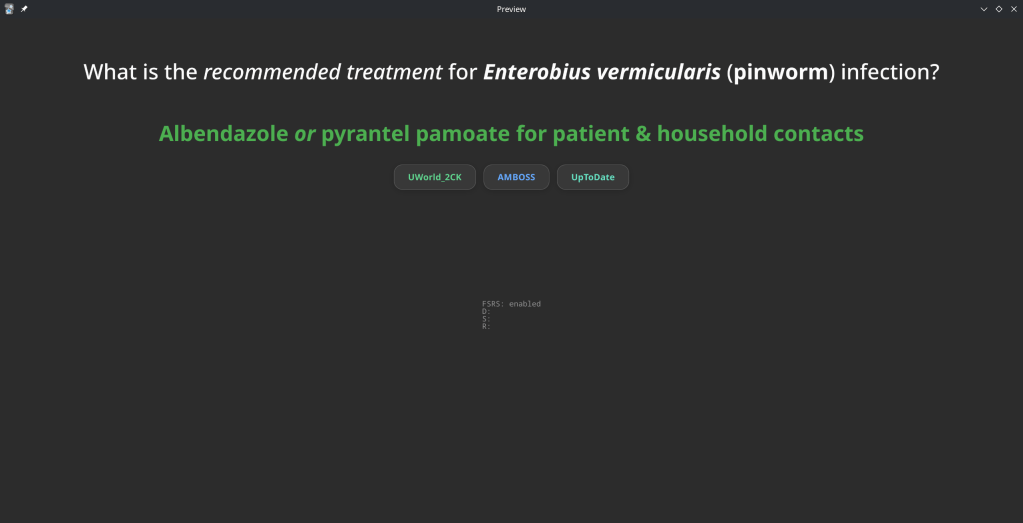
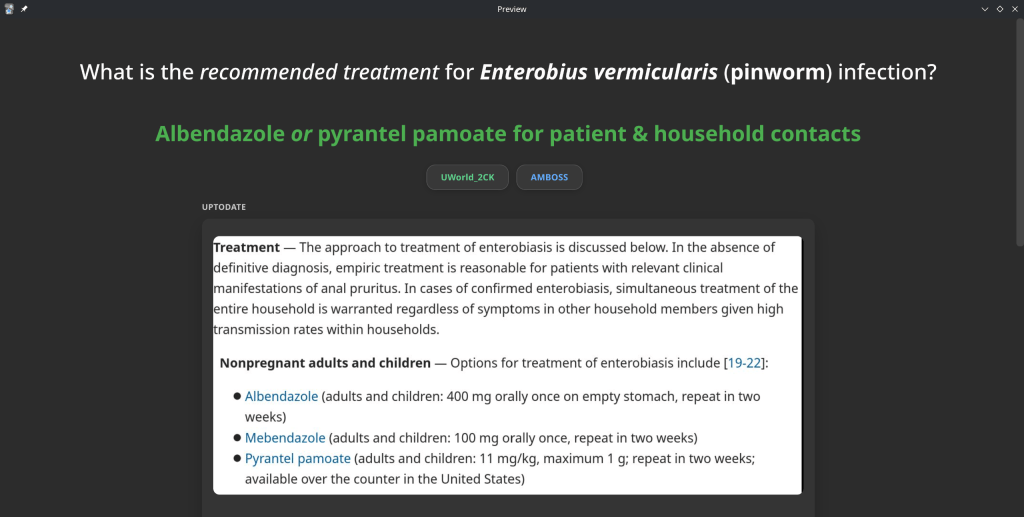
Available on GitHub under the BSD3 Licence.
-
I would like to share an AI generated script that I successfully used to automate my TrueNAS certificates with Tailscale.
This guide shows how to automatically use a Tailscale HTTPS certificate for the TrueNAS SCALE Web UI, when Tailscale runs inside a Docker container.
Overview
What this does
- Runs
tailscale certinside a Docker container - Writes the cert/key to a host bind-mount
- Imports the cert into TrueNAS
- Applies it to the Web UI
- Restarts the UI
- Runs automatically via cron
Requirements
- TrueNAS SCALE
- Docker
- A running Tailscale container (
tailscaled) - A host directory bind-mounted into the container at
/certs
Step 1 – Create a cert directory on the host
Create a dataset or folder on your pool (example):
mkdir -p /mnt//Applications/tailscale-certs
chmod 700 /mnt//Applications/tailscale-certsStep 2 – Bind-mount it into the Tailscale container
Your Tailscale container must mount the host directory to
/certs.Example (conceptually):
Host path: /mnt//Applications/tailscale-certs
Container: /certsThis is required for
tailscale certto write files that TrueNAS can read.Step 3 – Create the automation script (generic)
Save this as:
/mnt/<pool>/scripts/import_tailscale_cert.sh
Script:
#!/bin/bash
set -euo pipefail=========================
USER CONFIG (REQUIRED)
=========================
CONTAINER_NAME=“TAILSCALE_CONTAINER_NAME”
TS_HOSTNAME=“TAILSCALE_DNS_NAME”
HOST_CERT_DIR=“HOST_CERT_DIR”
LOG_FILE=“LOG_FILE”
TRUENAS_CERT_NAME=“TRUENAS_CERT_NAME”=========================
CRT=“${HOST_CERT_DIR}/ts.crt”
KEY=“${HOST_CERT_DIR}/ts.key”export PATH=“/usr/local/sbin:/usr/local/bin:/usr/sbin:/usr/bin:/sbin:/bin”
mkdir -p “$(dirname “$LOG_FILE”)”
touch “$LOG_FILE”
exec >>“$LOG_FILE” 2>&1
echo “—– $(date -Is) starting Tailscale cert import —–”command -v docker >/dev/null || { echo “ERROR: docker not found”; exit 2; }
command -v jq >/dev/null || { echo “ERROR: jq not found”; exit 2; }
command -v midclt >/dev/null || { echo “ERROR: midclt not found”; exit 2; }docker ps –format ‘{{.Names}}’ | grep -qx “$CONTAINER_NAME” || {
echo “ERROR: container not running: $CONTAINER_NAME”
exit 2
}docker exec “$CONTAINER_NAME” sh -lc ‘test -d /certs’ || {
echo “ERROR: /certs not mounted in container”
exit 2
}docker exec “$CONTAINER_NAME” sh -lc
“tailscale cert –cert-file /certs/ts.crt –key-file /certs/ts.key “$TS_HOSTNAME””[[ -s “$CRT” && -s “$KEY” ]] || {
echo “ERROR: certificate files missing”
exit 2
}midclt call certificate.create “$(jq -n
–arg n “$TRUENAS_CERT_NAME”
–rawfile c “$CRT”
–rawfile k “$KEY”
‘{name:$n, create_type:“CERTIFICATE_CREATE_IMPORTED”, certificate:$c, privatekey:$k}’)” >/dev/null || trueCERT_ID=“$(midclt call certificate.query | jq -r
–arg n “$TRUENAS_CERT_NAME” ‘. | select(.name==$n) | .id’ | tail -n 1)”[[ -n “$CERT_ID” ]] || {
echo “ERROR: failed to locate imported certificate”
exit 2
}midclt call system.general.update “$(jq -n –argjson id “$CERT_ID”
‘{ui_certificate:$id, ui_restart_delay:1}’)” >/dev/null
midclt call system.general.ui_restart >/dev/nullecho “SUCCESS: Web UI certificate updated”
Step 4 – Make it executable
chmod 700 /mnt//scripts/import_tailscale_cert.sh
Step 5 – Run once manually
/usr/bin/bash /mnt//scripts/import_tailscale_cert.sh
You will briefly disconnect from the Web UI — this is expected.
Step 6 – Verify certificate in UI
Go to:
System Settings → Certificates
Confirm the new certificate exists and uses your Tailscale hostname.
Also check:
System Settings → General → GUI
→ Web Interface HTTPS CertificateStep 7 – Create the cron job
TrueNAS UI → System Settings → Advanced → Cron Jobs → Add
/usr/bin/bash /mnt//scripts/import_tailscale_cert.sh
You can find the script on my Github repository:
https://github.com/chrislongros/truenas-tailscale-cert-automation
- Runs
-
I use Watchtower to automatically update my Docker applications on TrueNAS SCALE. At the same time, I use Tailscale Serve as a reverse proxy to provide secure HTTPS access to my home lab services.
This setup works well most of the time — except during updates.
The problem
When Watchtower updates a container, it stops and recreates it.
If the container exposes ports such as 80 or 443, the restart can fail because Tailscale Serve is already bound to those ports.The result is:
- failed container restarts,
- services going offline,
- and manual intervention required.
The solution
The solution is to temporarily disable Tailscale Serve, run Watchtower once, and then restore Tailscale Serve afterward.
On TrueNAS SCALE, Tailscale runs inside its own Docker container (for example:
ix-tailscale-tailscale-1). This makes it possible to control Serve usingdocker exec.The script below does exactly that:
- Backs up the current Tailscale Serve configuration
- Stops all Tailscale Serve listeners (freeing ports)
- Runs Watchtower in
--run-oncemode - Restores Tailscale Serve safely
Public Script: Pause Tailscale Serve During Watchtower Updates
Save as
/mnt/zfs_tank/scripts/watchtower-with-tailscale-serve.sh
(Adjust the pool name if yours is not
zfs_tank.)#!/usr/bin/env bash set -euo pipefail # ------------------------------------------------------------------------------ # watchtower-with-tailscale-serve.sh # # Purpose: # Prevent port conflicts between Watchtower and Tailscale Serve by: # 1. Backing up the current Tailscale Serve configuration # 2. Temporarily disabling Tailscale Serve # 3. Running Watchtower once # 4. Restoring Tailscale Serve # # Designed for: # - TrueNAS SCALE # - Tailscale running in a Docker container (TrueNAS app) # ------------------------------------------------------------------------------ # ========================= # CONFIGURATION # ========================= # Name of the Tailscale container (TrueNAS default shown here) TS_CONTAINER_NAME="ix-tailscale-tailscale-1" # Persistent directory for backups (must survive reboots/updates) STATE_DIR="/mnt/zfs_tank/scripts/state" # Watchtower image WATCHTOWER_IMAGE="nickfedor/watchtower" # Watchtower environment variables WATCHTOWER_ENV=( "-e" "TZ=Europe/Berlin" "-e" "WATCHTOWER_CLEANUP=true" "-e" "WATCHTOWER_INCLUDE_STOPPED=true" ) mkdir -p "$STATE_DIR" SERVE_JSON="${STATE_DIR}/tailscale-serve.json" # ========================= # FUNCTIONS # ========================= ts() { docker exec "$TS_CONTAINER_NAME" tailscale "$@" } # ========================= # MAIN # ========================= echo "==> Using Tailscale container: $TS_CONTAINER_NAME" # Ensure Tailscale container exists docker inspect "$TS_CONTAINER_NAME" >/dev/null # 1) Backup current Serve configuration (CLI-managed Serve) echo "==> Backing up Tailscale Serve configuration" if ts serve status --json > "${SERVE_JSON}.tmp" 2>/dev/null; then mv "${SERVE_JSON}.tmp" "$SERVE_JSON" else rm -f "${SERVE_JSON}.tmp" || true echo "WARN: No Serve configuration exported (may be file-managed or empty)." fi # 2) Stop all Serve listeners echo "==> Stopping Tailscale Serve" ts serve reset || true # 3) Run Watchtower once echo "==> Running Watchtower" docker run --rm \ -v /var/run/docker.sock:/var/run/docker.sock \ "${WATCHTOWER_ENV[@]}" \ "$WATCHTOWER_IMAGE" --run-once # 4) Restore Serve configuration (if present and non-empty) echo "==> Restoring Tailscale Serve" if [[ -s "$SERVE_JSON" ]] && [[ "$(cat "$SERVE_JSON")" != "{}" ]]; then docker exec -i "$TS_CONTAINER_NAME" tailscale serve set-raw < "$SERVE_JSON" || true else echo "INFO: No Serve configuration to restore." fi echo "==> Done"
Make the script executable
chmod +x /mnt/zfs_tank/scripts/watchtower-with-tailscale-serve.sh
How to run it manually
sudo /mnt/zfs_tank/scripts/watchtower-with-tailscale-serve.sh
Scheduling (recommended)
In the TrueNAS UI:
- Go to System Settings → Advanced → Cron Jobs
- Command:
/mnt/zfs_tank/scripts/watchtower-with-tailscale-serve.sh
User:
rootSchedule: daily (for example, 03:00)
Disable Watchtower’s internal schedule (
WATCHTOWER_SCHEDULE) to avoid conflicts
The repository containing the code:
https://github.com/chrislongros/watchtower-with-tailscale-serve
-

After months and months of work that went to this version of FreeBSD, the time has now come! FreeBSD 15.0 is now globally available for the general public! This version of FreeBSD aims to be more welcoming to new users and to maintain the reproducible builds, alongside many improvements to come. The ISO images can […]
FreeBSD 15.0 goes official! -
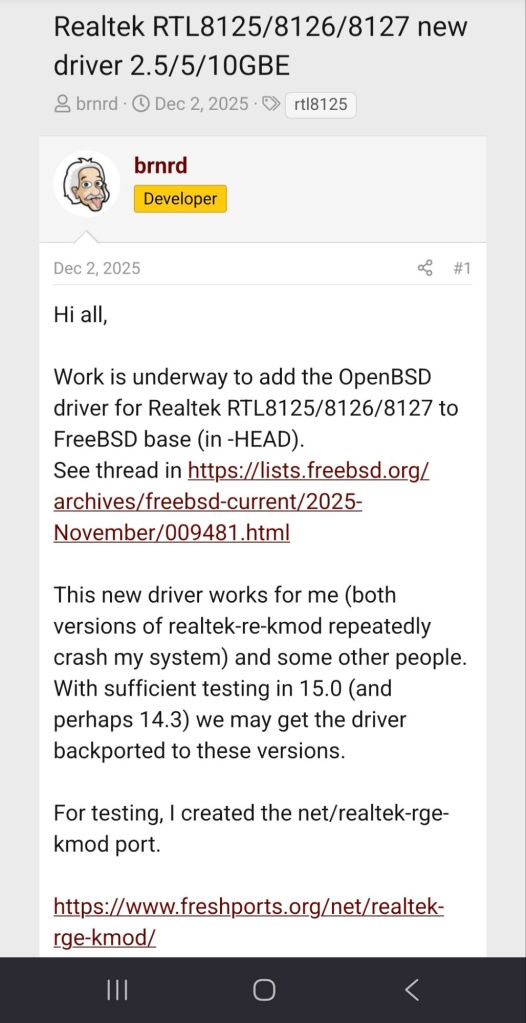
The driver will be ported from OpenBSD. Didn’t know that OpenBSD was far ahead when it comes to this issue …
-
It is quite annoying getting notifications for unencrypted http connections on my home servers. One solution for Synology is to set a scheduled task with the following command:
tailscale configure synology-cert
This command issues a Let’s Encrypt certificate with 90 day expiration that get’s automatically renewed depending on the task frequency.
For my TrueNAS I use tailscale serve to securely expose my services and apps (immich etc) through a HTTPS website in my tailnet. Enabling HTTPS via tailscale admin panel is required.
The next step it to execute: tailscale serve –https=port_number localhost:port_number
You can execute the command in the background with –bg or in foreground and interrupt it with Ctrl+C.




 /root
/root 