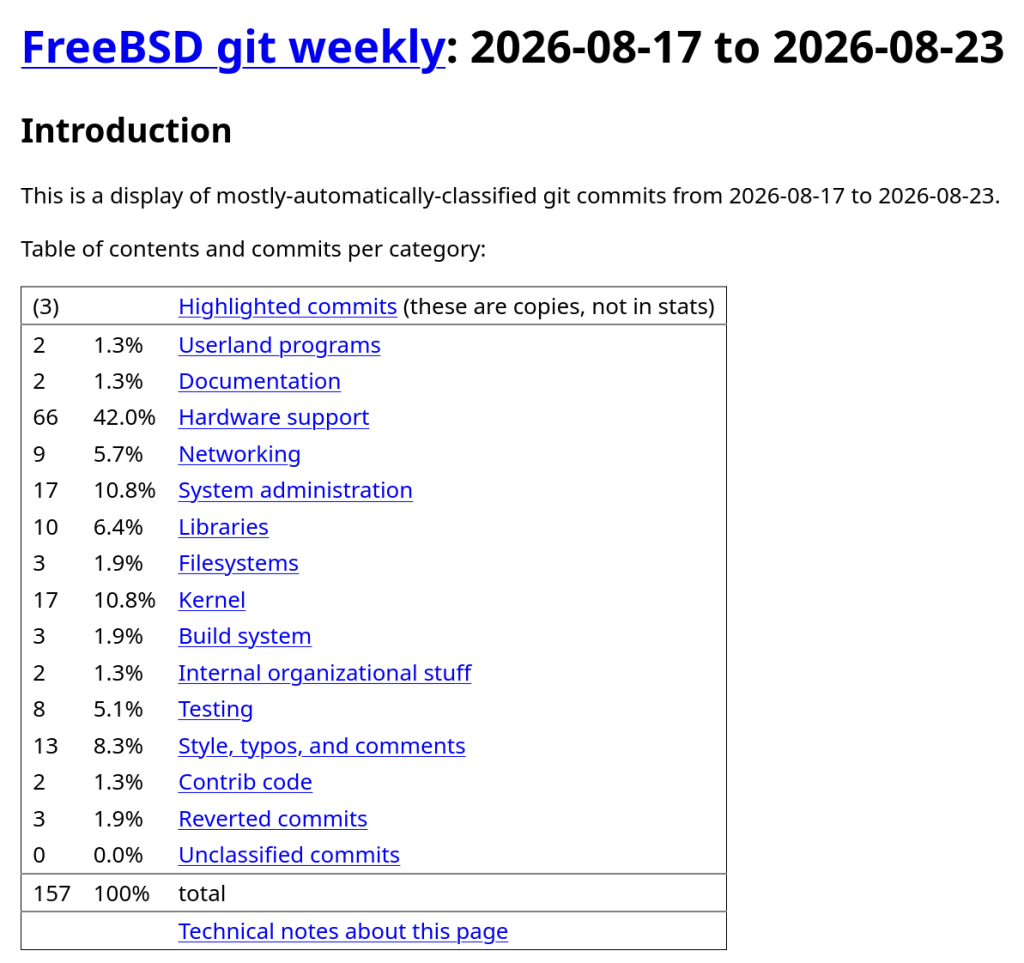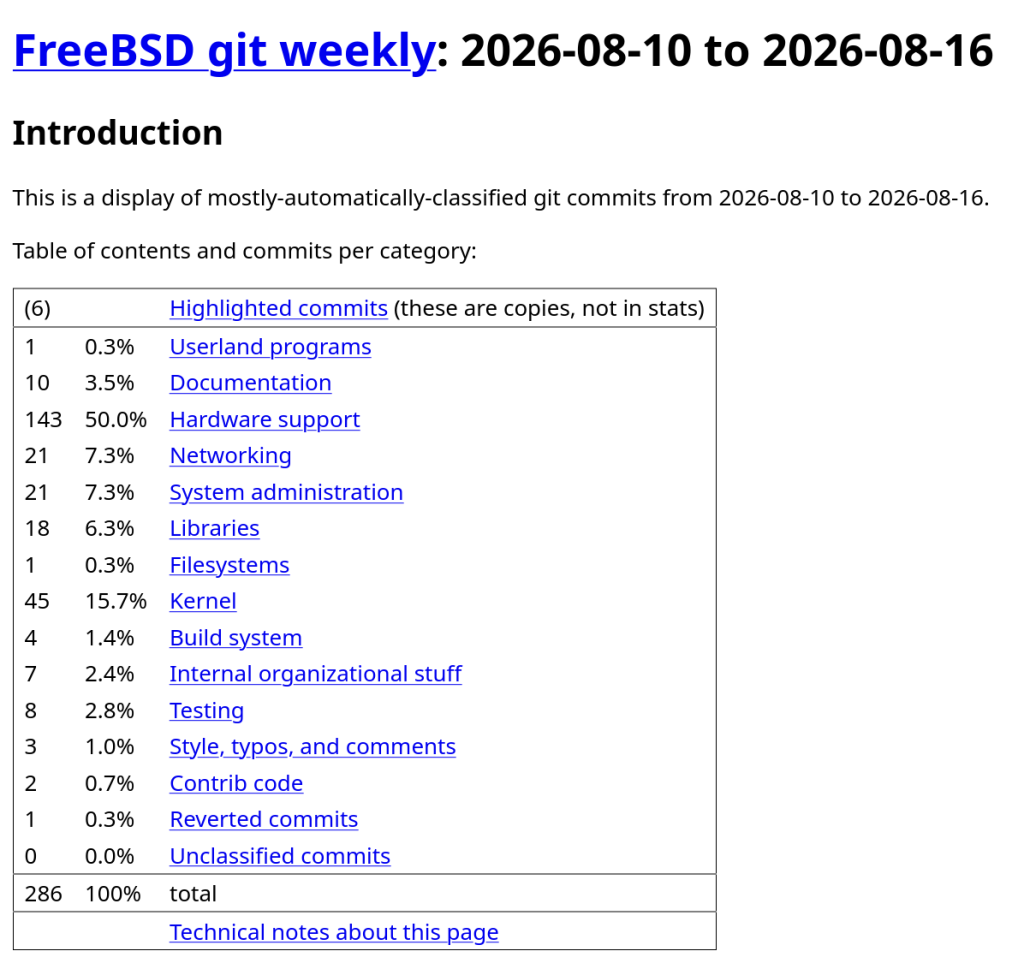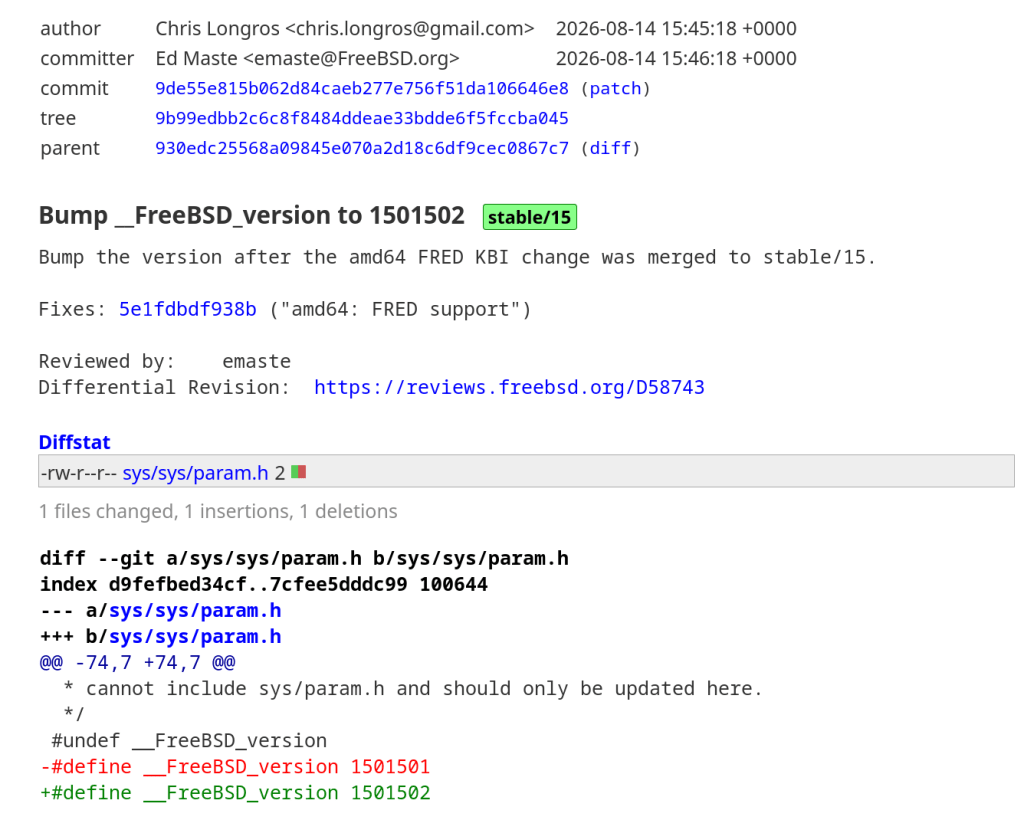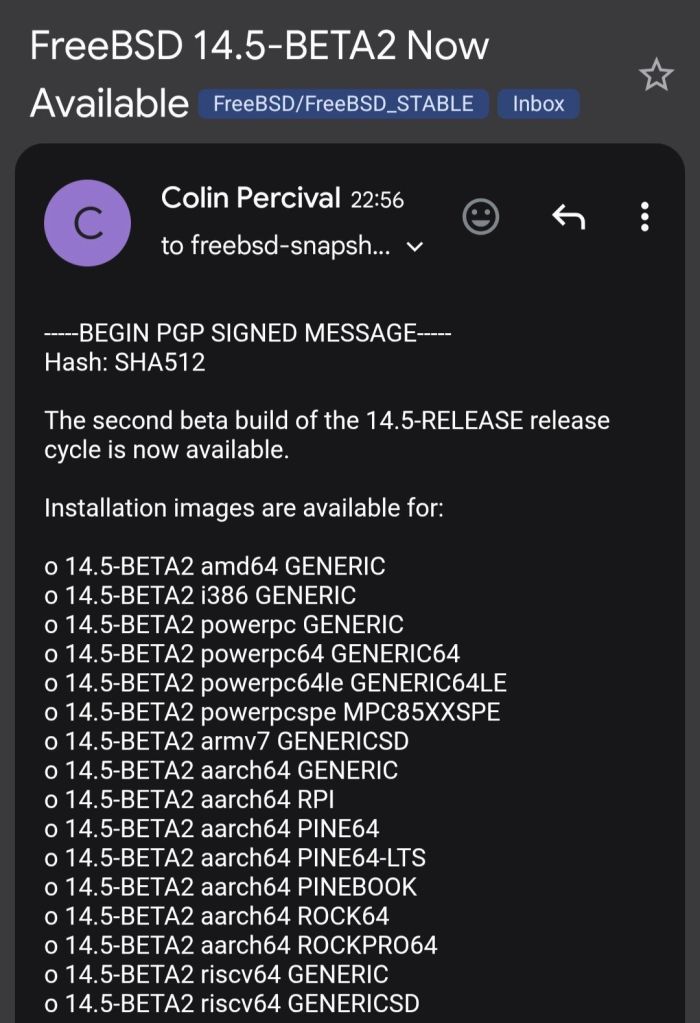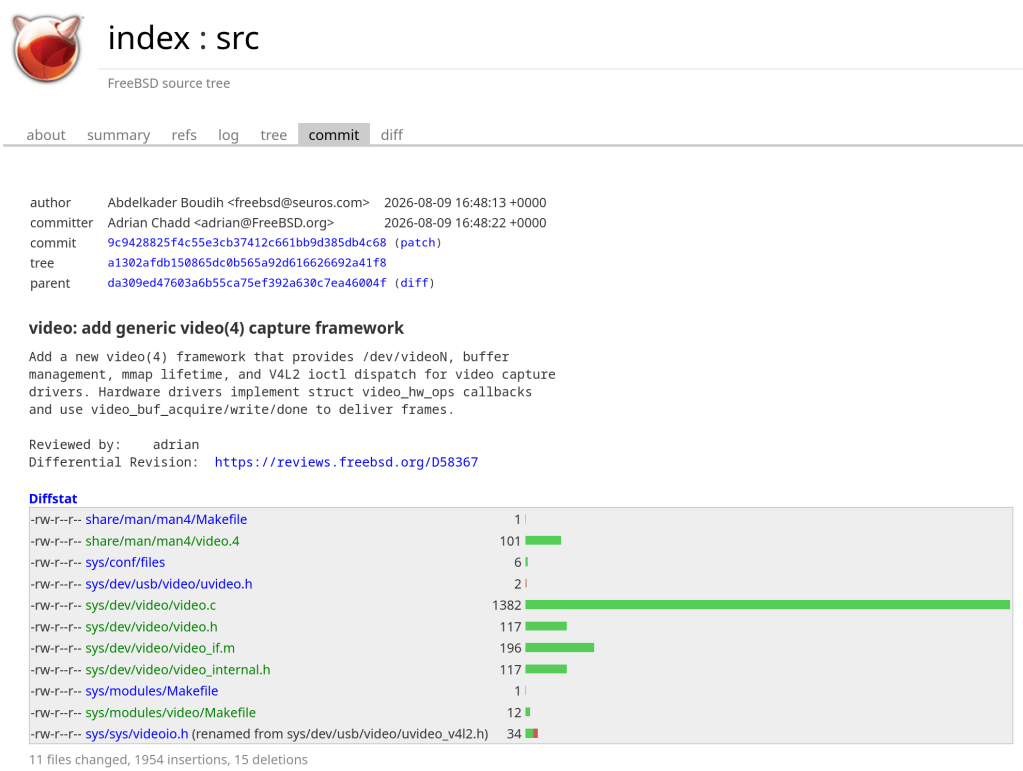




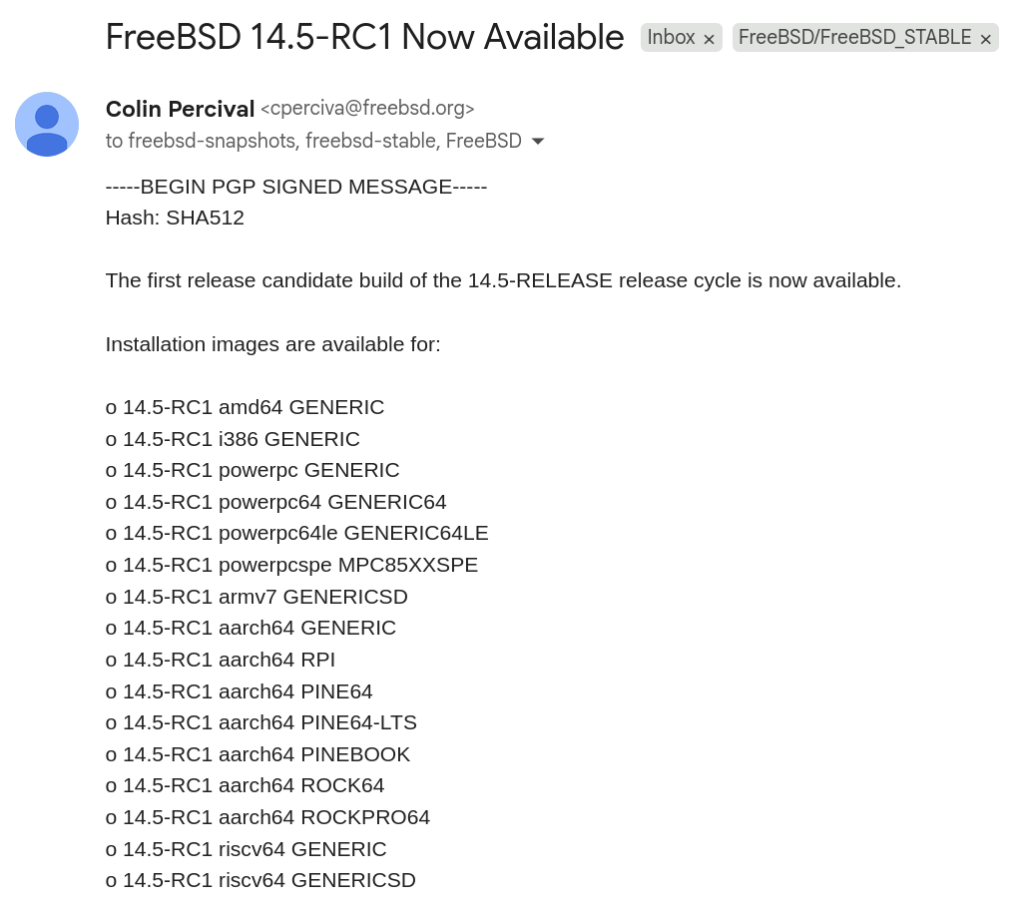
https://cgit.freebsd.org/src/commit/?id=59cb18f35617d3a53f7d7e142b4f91ad7951f5e0
“Over 30 years of ‘FreeBSD’ commit activity and contributor growth. Includes daily commit counts and new committer data extracted from the cloned git repository (1993-2026), plus ‘Phabricator’ signup statistics (2013-2026). Contains no personal data – only aggregated counts. Useful for time series analysis, growth modeling, and studying open source community dynamics.”

https://cran.r-project.org/web/packages/freebsdcontribs/index.html
If you run a FreeBSD VM under QEMU with -nographic and the terminal goes silent right after the kernel modules load — no login prompt, no panic, just nothing — the VM hasn’t frozen. It booted successfully. The issue is that kernel output is going somewhere you can’t see.
This post explains why that happens and how to fix it properly.
FreeBSD supports two console backends: vidconsole (virtual VGA framebuffer) and comconsole (serial port, ttyu0). Official VM disk images from download.freebsd.org default to vidconsole — a reasonable choice for hypervisors that expose a graphical display.
QEMU’s -nographic mode suppresses the display window and maps your terminal to the VM’s serial port instead. The problem is the FreeBSD kernel is unaware of this. It continues writing to vidconsole, which effectively goes nowhere in a -nographic session.
The bootloader, however, outputs to both VGA and serial simultaneously. That’s why you see the FreeBSD logo, the boot menu, and the kernel module lines — all of that is bootloader output. The moment the kernel takes control, it drops to vidconsole only, and your terminal goes quiet.
The handoff point is visible in the output:
/boot/kernel/zfs.ko size 0x788828 at 0x2795000 /etc/hostid size=0x25 /boot/entropy size=0x1000
Everything after that last line is the kernel running — login prompt included — just on a VGA console you can’t access from a -nographic session.
To get through without modifying the image, interrupt autoboot when you see the countdown. Press Space to pause it, then at the loader prompt:
set console="comconsole" boot
This tells the kernel to route console I/O through the serial port for this boot only. You’ll see full kernel output and get a working login prompt.
Once inside the VM, make the change persistent:
echo 'console="comconsole"' >> /boot/loader.conf
From the next boot onward, the kernel will direct all console output to ttyu0 automatically. No more intercepting the bootloader, no more silent boots. This is the right fix if you’re using this image regularly for development or testing.
If you don’t need to observe the boot sequence at all, daemonize the VM and access it over SSH:
qemu-system-x86_64 \
-enable-kvm \
-m 4G \
-smp 4 \
-hda ~/vms/FreeBSD-16.0-CURRENT-amd64-zfs.qcow2 \
-display none \
-daemonize \
-nic user,hostfwd=tcp::2222-:22
Give it roughly 30 seconds to reach multi-user mode, then:
ssh -p 2222 root@localhost
When you’re done:
kill $(pgrep qemu-system)
This approach sidesteps the console issue entirely and works well for quick test sessions where sshd is already enabled in the image.
The bootloader’s dual-output behavior is what makes this particularly deceptive. Because you do get output right up to the kernel handoff, it’s natural to assume something went wrong during kernel initialization — a ZFS import failure, a module panic, something with entropy. In practice, none of that. The system is fully operational, just talking to a VGA display you have no visibility into.
Kernels built with BOOT_COMCONSOLE in their config, or images specifically targeting headless/serial environments, won’t exhibit this. The stock VM images are built for general-purpose use, so VGA is the sensible default — it just doesn’t play well with -nographic out of the box.
| Goal | Solution |
|---|---|
| Fix for one boot | Press Space → set console="comconsole" → boot |
| Fix permanently | echo 'console="comconsole"' >> /boot/loader.conf |
| Skip console, SSH only | -display none -daemonize + SSH after ~30s |
Adding console="comconsole" to /boot/loader.conf is the one-time fix that makes FreeBSD under QEMU behave predictably for all subsequent work. After that, -nographic sessions give you full console output from boot to login with no intervention required.
The push for a modern graphical installer in FreeBSD has been ongoing for a while. With FreeBSD 15.0 released in December 2025, many expected it to ship with a graphical installation option — but it didn’t make the cut. The good news: it’s coming in FreeBSD 15.1.
FreeBSD 15.0 shipped with the traditional bsdinstall text-based installer. While functional, it’s showing its age — the text-based dialogs work fine for experienced admins, but they’re a barrier for adoption compared to what Linux distros offer.
According to the FreeBSD Q4 2025 status report and the Foundation’s laptop project updates, FreeBSD 15.1 will include:
This is part of the FreeBSD Foundation’s broader laptop usability initiative, which has received over $750,000 in funding throughout 2025 and continues into 2026. The project covers Wi-Fi, graphics drivers, audio, power management, and installation experience.
FreeBSD has always been technically excellent but lagged behind Linux in user-friendliness. A graphical installer with KDE won’t change the OS itself, but it removes one of the biggest friction points for new users. Combined with improvements like PkgBase, s2idle sleep support, and the new SPMC power management driver, FreeBSD is becoming more approachable without sacrificing what makes it great.
For those of us who’ve been installing FreeBSD since the sysinstall days, it’s exciting to see the project evolve while keeping its identity. The FreeBSD 15.1 release schedule is worth keeping an eye on.
This is a cautionary tale about how I nearly lost everything on my external SSD because of a moment of carelessness.
I wanted to create a bootable USB with Ventoy to run a Linux or FreeBSD ISO. Simple enough — I’ve done it a hundred times. The problem was that I also had my external SSD connected at the same time.
I somehow selected the wrong disk. Instead of formatting the USB stick, I formatted my external SSD. Just like that — all my data was gone.
That sinking feeling when you realize what you’ve done is something I wouldn’t wish on anyone.
Thankfully, I was able to recover most of my data using PhotoRec, a free and open-source data recovery tool (currently at version 7.2, with 7.3 in beta as of January 2026). PhotoRec ignores the filesystem and goes after the underlying data, so it works even after formatting. It can recover over 480 file formats.
Install it (it comes with TestDisk):
# Arch Linux
sudo pacman -S testdisk
# FreeBSD
pkg install testdisk
Run it:
sudo photorec /dev/sdX
PhotoRec will scan the disk and recover files into a directory of your choice. It recovered most of my files, though filenames and directory structure were lost — everything gets sorted by file type.
lsblk before any destructive operation. Verify the disk size and partitions match what you expect. Ventoy (currently at v1.1.10) shows disk names and sizes — take the extra second to verify.Don’t be like me. Disconnect your drives, check twice, and back up your data. Your future self will thank you.
An annoying problem that I always had while running FreeBSD on my Dell Inspiron 15 5510 is the high temperature and fan speed. Doesn’t matter if it’s a live medium or post-installation — the average CPU temp is over 60 degrees Celsius.
With FreeBSD 15.0 (released December 2025) and the FreeBSD Foundation’s laptop project, things have improved significantly. Here’s what works.
First, load the Intel Core temperature sensor driver:
kldload -v coretemp
Then check the temperature with:
sysctl dev.cpu | grep temperature
To load this automatically at boot, add to /boot/loader.conf:
coretemp_load="YES"
FreeBSD ships with powerd, a daemon that dynamically adjusts CPU frequency based on load. Enable it in /etc/rc.conf:
powerd_enable="YES"
powerd_flags="-a hiadaptive -b adaptive"
This sets the CPU to hiadaptive mode on AC power (favors performance but still scales) and adaptive on battery (favors power saving).
Enable deeper CPU sleep states by adding to /etc/sysctl.conf:
hw.acpi.cpu.cx_lowest=Cmax
FreeBSD 15 brings new power management features from the Foundation’s laptop initiative:
For laptops, suspend/resume support can be tested with:
acpiconf -s 3
If it works, you can bind it to your laptop lid by adding to /etc/sysctl.conf:
hw.acpi.lid_switch_state=S3
After applying these changes, my Dell Inspiron dropped from a constant 60+ degrees down to around 40-45 degrees at idle, and the fan became much quieter. The combination of powerd with proper C-state configuration makes a noticeable difference on FreeBSD laptops.
More details: coretemp(4), powerd(8), FreeBSD Wiki: Tuning Power Consumption
If you’ve ever rebooted a machine and NTP refused to sync because the clock drifted too far, you’ve hit the panic threshold. By default, ntpd will exit if the offset exceeds 1000 seconds.
Add this to /etc/ntp.conf:
tinker panic 0
Setting panic 0 disables the panic threshold entirely, allowing ntpd to correct any offset regardless of size.
If you don’t want to permanently disable the panic threshold, you can do a one-time force sync with:
ntpd -gq
The -g flag allows the first adjustment to be any size, and -q makes ntpd set the time and exit.